Step-by-step tutorial · About 20 minutes
Your first sandbox payment
Start with a test key, create one simulated payment, then check the final result. You will learn which screen creates the key, what belongs in the request, and why PENDING is different from a successful payment.
The screenshots were captured on 24 October 2026. The key-creation form was left unsaved; no key or payment was created for these images. API response examples below are illustrative, rather than receipts from an executed payment.
1. Prepare the merchant account
You need access to your merchant dashboard, permission to manage its developer keys, and a terminal with curl. Use the same merchant throughout the tutorial. If sign-in or merchant access is incomplete, finish the displayed account steps before continuing.
Open Developers in the sidebar. This is where API keys, webhook configuration, delivery logs and hosted checkout sessions are managed. The account login token and the server API key serve different purposes.
2. Create a test key from Test view
- In the dashboard's top bar, select Test data.
- Open Developers → Create key.
- Enter a name such as Tutorial sandbox.
- Confirm the dialog's Mode reads Test.
- For this charge tutorial, select
charges.write. Selectcheckouts.writeonly if you will also try hosted checkouts. Leave unrelated optional scopes unselected. - Select Create key, then copy the one-time plaintext key into server secret storage.
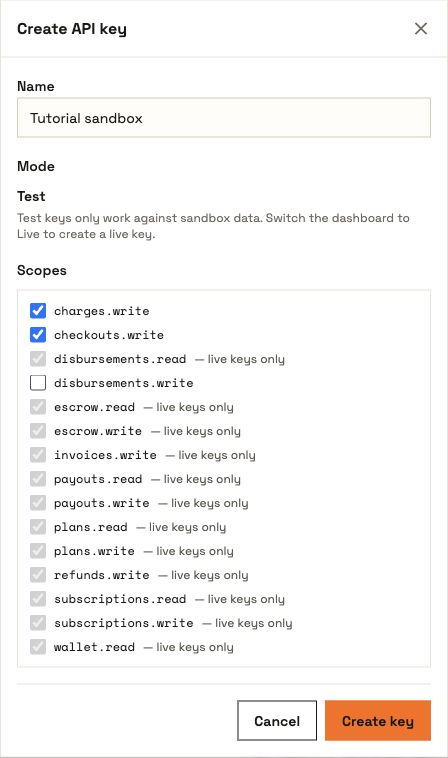
Test keys start with ypk_test_. A key name containing the word “test” does not set the mode: inspect the prefix and dialog mode. The greyed-out live-only scopes are unavailable to a sandbox key. If the dialog says Live, cancel it, select Test data in the dashboard, and reopen it.
The dashboard view filters the data you see and chooses the mode of newly created keys. It does not convert an existing live key into a test key. Never use a live key for this tutorial.
Set the server variable, replacing the placeholder:
export YEBOPAY_API_KEY='ypk_test_REPLACE_WITH_YOUR_TEST_KEY'Ready to continue: the actual saved key starts with ypk_test_, has the required charge scope and is kept out of browser code and screenshots.
3. Discover the available payment options
Ask YeboPay which providers are active for the test country. A test key can use the production API host; key mode determines whether processing is simulated.
curl --fail-with-body --silent --show-error \
  'https://api.yebopay.app/v1/payment-options?country=SZ' \
  -H "X-API-Key: $YEBOPAY_API_KEY"
Read the successful response before choosing a provider_code. The example below uses mtn-momo for Eswatini; use an active provider from the response. If the country or provider is unavailable, resolve that error rather than substituting a made-up success.
4. Create one sandbox charge
Save the request as charge.json. This is the one-off mobile-money path; do not also provide a saved payment_method_id.
{
  "amount": 100,
  "currency": "SZL",
  "yeboid_sub": "11111111-1111-4111-8111-111111111111",
  "country": "SZ",
  "provider_code": "mtn-momo",
  "phone": "+268761230000"
}| Field | How to read the example |
|---|---|
amount | Major currency units: 100 means SZL 100.00, not 100 cents. |
currency, country | ISO codes: SZL for the currency and SZ for Eswatini. |
yeboid_sub | The customer's YeboID UUID. The value above is a synthetic sandbox example; use the real signed-in customer's subject for a live integration. |
provider_code | An active provider returned by the country discovery request. |
phone | In sandbox mode the final four digits select the simulated outcome. 0000 requests the success path; no real processor is called. |
Choose an idempotency key for this logical payment and submit the file:
export PAYMENT_ATTEMPT_ID="tutorial-$(date +%s)"
curl --fail-with-body --silent --show-error \
  -X POST 'https://api.yebopay.app/v1/charges' \
  -H "X-API-Key: $YEBOPAY_API_KEY" \
  -H 'Content-Type: application/json' \
  -H "Idempotency-Key: $PAYMENT_ATTEMPT_ID" \
  --data @charge.json
Keep PAYMENT_ATTEMPT_ID with the order or payment attempt. If this request times out, retry that same attempt with the same key and unchanged body. A new key means a new payment attempt.
The API reference exposes the request fields and response schemas alongside examples:
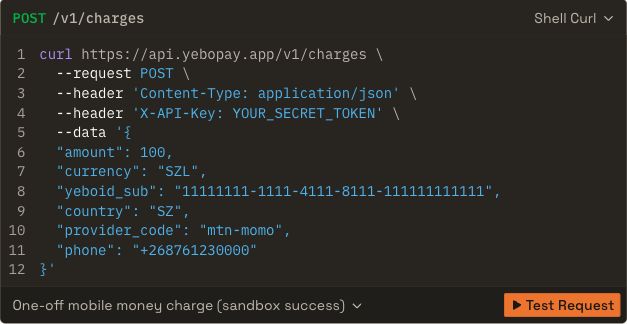
Check the actual response: a new accepted charge normally returns HTTP 201, success: true, data.status: "PENDING" and data.livemode: false. Save data.id. An idempotent replay can return HTTP 200 with replayed: true.
If the actual response says livemode: true, stop: you used a live credential. Do not treat a reference schema's sample status or mode as your own request result.
5. Retrieve the final result
Replace CHARGE_ID with the returned data.id and use the same test key:
curl --fail-with-body --silent --show-error \
  'https://api.yebopay.app/v1/charges/CHARGE_ID' \
  -H "X-API-Key: $YEBOPAY_API_KEY"
The 0000 sandbox path normally settles after a short delay. If it is still PENDING, check again with a reasonable delay; do not create another charge just to find out what happened to the first.
| Status | Your app should do |
|---|---|
PENDING | Show that confirmation is still in progress. |
SUCCEEDED | Confirm this payment only after matching merchant, amount, currency and order/customer reference. |
FAILED | Show the failure reason and a supported next action. |
6. Add signed webhook handling
Use Developers → Webhooks to configure your public HTTPS endpoint and the signing secret. Keep the secret on your server. The Webhooks reference documents the signature format and event payload.
Verify the signature before trusting charge.succeeded or charge.failed, and process each event once using its event ID. A returned browser redirect is not authoritative payment confirmation. Inspect the dashboard's Delivery log to distinguish your handler accepting a webhook from your order actually being updated.
For this first walkthrough, polling the charge is sufficient to inspect the final sandbox result; webhook handling is the next integration step.
7. Test the other outcomes
Use a fresh idempotency key for a genuinely new test payment. Change only the final four phone digits to choose these simulator paths:
| Ending | Expected path |
|---|---|
0000 | Eventual SUCCEEDED. |
0001 | Eventual FAILED. |
0002 | Remains PENDING until the documented test advance operation is used. |
The advance operation is POST /v1/test/charges/{id}/advance with the same test key. It is a sandbox tool, not a way to force a live payment through. A failed payment and a pending payment must remain different states in your UI.
8. Resolve common errors
| What you see | Next action |
|---|---|
| Key dialog says Live | Cancel, select Test data, then reopen Create key. |
401 | Check the active API key and X-API-Key header. |
403 | Confirm that the key has the required scope. |
400 | Read the field error: check UUID, ISO codes, amount and the selected identification path. |
404 | For a charge, confirm its ID and merchant. For discovery, check country/provider availability. |
501 or 502 | Read the unsupported-operation or upstream error; do not invent a successful payment. |
| Not visible in Live view | Sandbox charges belong in Test view and are excluded from live revenue totals. |
| Duplicate payment risk after a timeout | Retrieve the saved charge or retry the same idempotency key and body. |
You are finished when you can identify the sandbox charge, confirm livemode: false, observe its final status, and show a different next action for success, failure and pending. Continue with hosted checkouts or the full API reference.